Generate structured 3D assets from text or reference images. Architect organizes a model into named parts, so its components can be inspected, edited, and used individually in a scene.
Architect models have separate, editable parts organized in a hierarchy.
Structured 3D generation
Furniture, vehicles, buildings, and machinery are made of components with different roles. Architect creates hard-surface models with a part hierarchy, giving those components a structure for later revisions and interactive use.
Generate from text or reference images
A text description defines the object, its proportions, and its main components. Reference images guide its appearance. Architect accepts a single image or up to six references for a generation.
A useful starting point describes the complete object and its main assemblies: an industrial robot arm with an articulated shoulder, forearm, wrist, and two-finger gripper on a heavy pedestal.
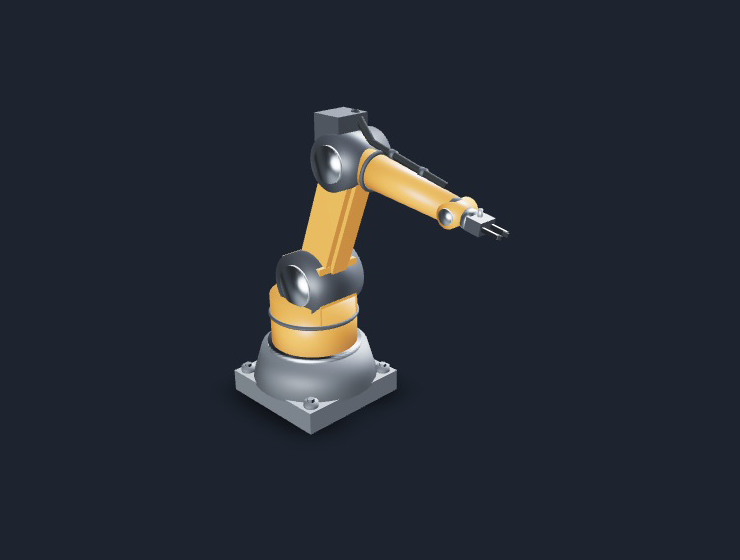
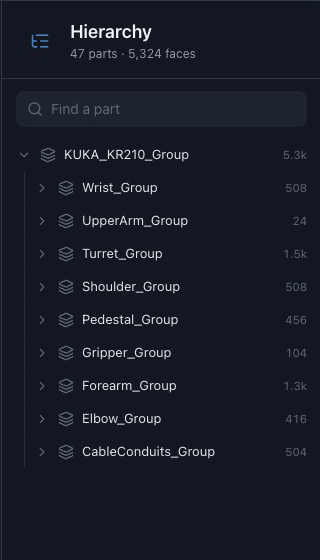
The original Architect generation, with 47 separate parts.
Inspect and edit named parts
The part hierarchy identifies individual components. Selecting a forearm, gripper, or base provides a specific target for a change, while the surrounding model supplies context.
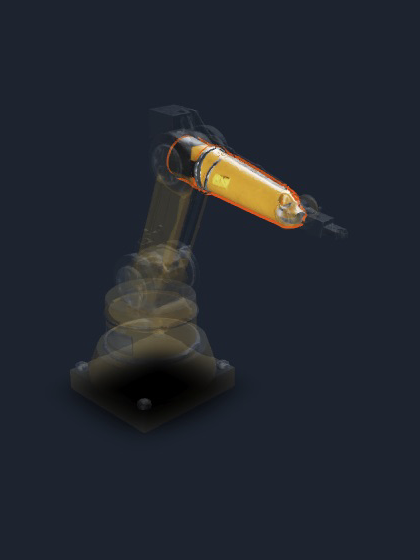
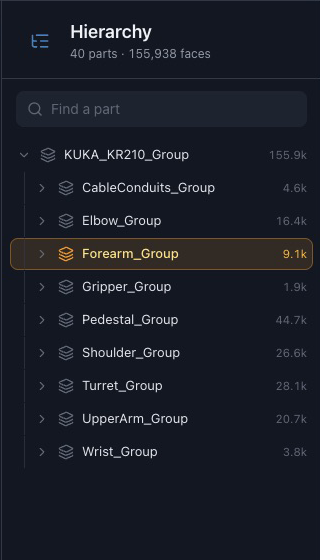
Named parts can remain available after refinement. This Detailer result retains 40 parts, with the forearm selected for a focused edit. The Thrixel Agent brings part-scoped edits into a conversational workflow.
Detailer result: 40 parts, with the forearm selected in the viewport and hierarchy.
Refine materials and surface detail
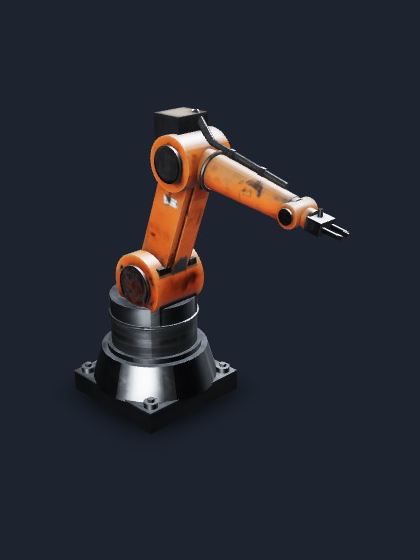
Once the proportions are established, Texturer changes the surface appearance while preserving the geometry. Painted metal, machined joints, and dark cable conduits give this robot arm an industrial finish.
Detailer adds geometric detail and can change the shape. Texturer focuses on surface materials. The textured version shown here retains all 47 original parts for later selection and editing.
Textured version: orange paint, metal joints, and surface wear, with 47 parts retained.
Writing an Architect prompt
A useful prompt describes a recognizable object, its important components, and the intended visual style. Specific proportions and materials give the generation a clearer direction than broad adjectives alone.
Object and proportions
Name the object and its overall proportions, such as a six-axis industrial robot arm on a heavy pedestal.
Distinct components
Identify the assemblies that matter, such as a shoulder, upper arm, forearm, wrist, gripper, and cable conduits.
Materials and style
Describe the finish consistently, such as safety-orange enamel, graphite joint housings, and brushed aluminum flanges.
Example generation prompt
A six-axis industrial robot arm on a heavy cast pedestal. A rotating base turret, thick shoulder link, long upper arm, slim forearm, compact wrist, and two-finger pneumatic gripper. Cable conduits run along the arm. Safety-orange enamel, graphite-grey joint housings, and brushed aluminum flanges. Keep the main assemblies as distinct components.
A focused follow-up
Make the gripper fingers longer while keeping the wrist and forearm the same size.
The generated hierarchy and proportions can be inspected before choosing the next edit.
Applications for multipart 3D models
Separate components are useful when a model needs targeted revisions or individual parts need to move in a scene.
Interactive props
Furniture, equipment, and other props with doors, drawers, panels, or controls that can be connected to interactions.
Vehicles and machinery
Wheels, chassis, housings, and mechanical assemblies that need distinct geometry for iteration or movement.
Buildings and environments
Structures with separate architectural components, such as doors, roof sections, and fixtures, for scene assembly and revision.
Movement, collision behavior, and interaction logic are configured in the destination engine or simulation.
Export and connect the workflow
Architect models can be downloaded as GLB, with conversion to FBX, OBJ, STL, and USDZ. The format depends on the destination and the information it needs to carry; STL, for example, contains geometry without textures.
After import, check the hierarchy, scale, materials, and the components used by the scene. A wheel's rotation or a door's opening behavior is configured alongside the rest of the application.
Can Architect create a 3D model from a text prompt?
Yes. A text description can define the object to generate. The resulting model has named components that can be inspected and used as targets for later edits.
Can reference images guide the model?
Yes. Architect accepts one reference image or up to six images. References can be combined with a description of the intended object.
What does an editable part hierarchy mean?
The model contains separately named components organized within the asset. Those names make it possible to identify a component and target it during editing. The hierarchy supports focused changes as the model develops.
Are separate parts automatically animated?
Separate geometry provides components that can be moved individually. Animation, pivots, joints, collisions, and interaction logic are configured for the destination application.
When is Architect a good fit compared with Sculptor?
Architect focuses on structured, hard-surface objects such as furniture, vehicles, buildings, and machinery. Sculptor focuses on organic and sculptural forms, including characters and creatures. The choice depends on the object's form and the editing workflow it needs.